9.3.2.12. set ssh-keys
A - Introduction
The
`ssh-keys` command of the `set` sub-group enables adding or changing the SSH keys.Depending on the account, it is possible to change only the current level and the lower level.
The addition or modification can be carried out either on the command line or via the Nano text editor.
Changing SSH keys overwrites the old keys. You must specify the old keys followed by the new ones in the command.
User
can change the password
setup
gviewadm
gview
setup
X
X
X
gviewadm
X
X
gview
X
The GCap enables up to 50 different users with different key sizes:
RSA 2048 ou 4096
ssh-ed25519
ecdsa-sha2-nistp256
B - Prerequisites
User: setup, gviewadm, gview
Dependencies: N/A
C - Command
`set ssh-keys {setup|gviewadm|gview} "ssh-rsa ...\nssh-rsa`
D - Procedure to use the text editor
The command prompt is displayed.
(gcap-cli)
Enter the command
set ssh-keys gview
- ValidateThe text editor displays the SSH password file
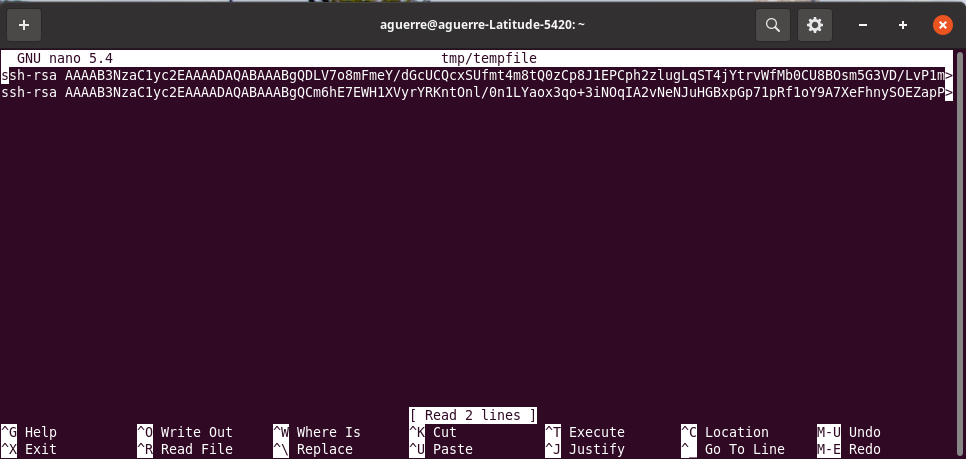 Each line in the file is an SSH key starting with ssh-rsa.
 - To delete a key, delete the lineTo change a key, edit a lineTo add a key, add a line starting with sshrsa
To exit, press <CTRL> + <X>
Save the changes if necessary
E - Procedure to add an SSH key to the setup user from a connection with the setup user
The command prompt is displayed.
(gcap-cli)
Enter the command
set ssh-keys setup "ssh-rsa ..."
Validate